EditorAny
Extraordinary scenes. Unforgettable moments. See what AI can bring to life on VideoAny.
Explore more with AIVideoAny AI
This Flux 2 Pro image generator is a prompt-led image-to-image workbench. Upload one or more reference stills, write what must stay and what may change, then generate. It is not text-to-image and it does not generate video. This route locks the workbench to Flux 2 Pro. Flux 2 Pro accepts up to eight reference images. You can choose 1K or 2K and an aspect ratio from the sizes it lists, including auto. The credit cost for Flux 2 Pro and the selected options appears before you submit.
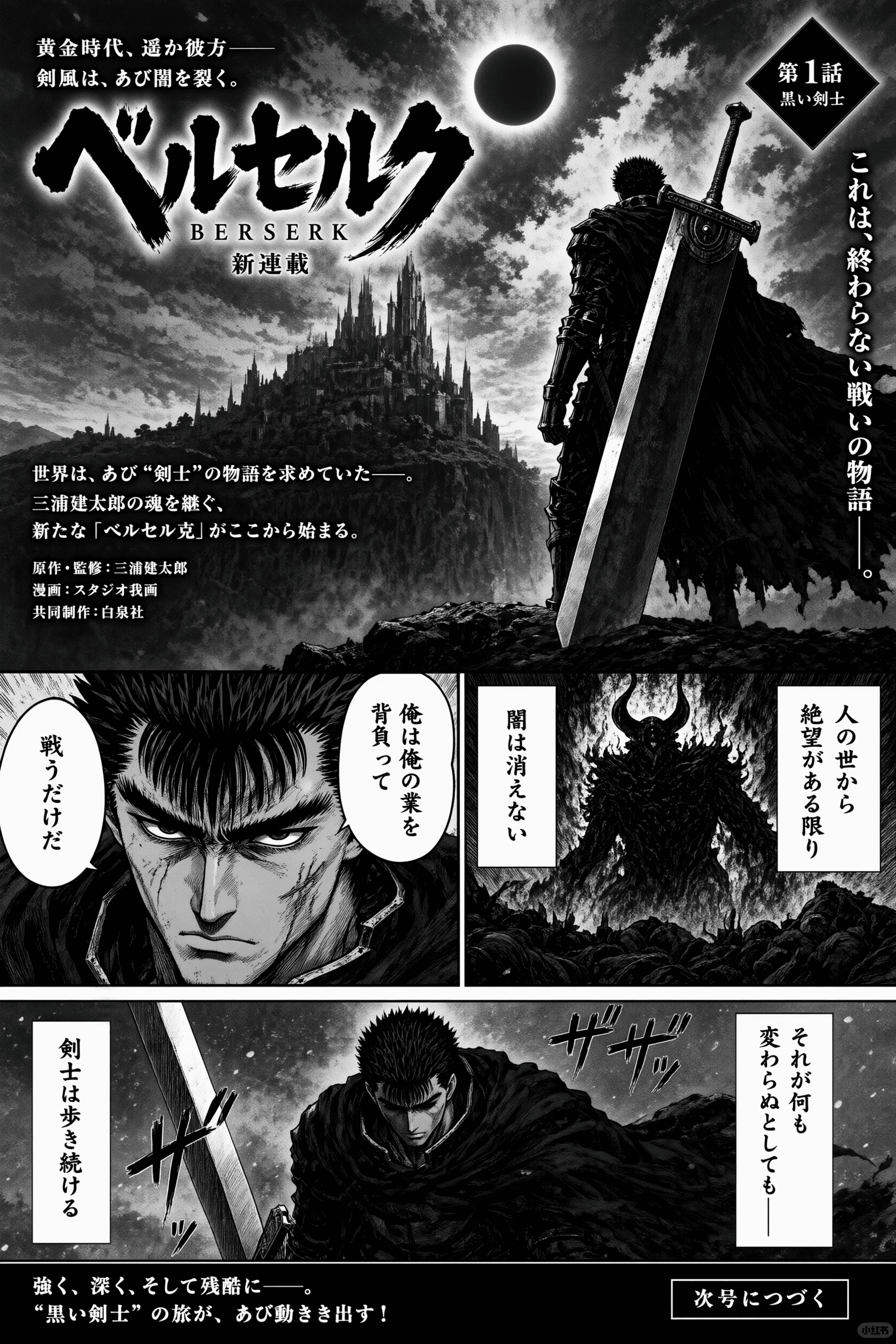
This route locks the image-to-image workbench to Flux 2 Pro. You still choose aspect ratio and 1K or 2K. Those choices sit beside the uploaded stills and the keep-and-change notes. The strip below reuses the image-to-image template logos; availability follows the locked selector, not every logo.
01
A photographic or graphic source on this Flux 2 Pro image generator stays on Flux 2 Pro, so the upload remains the source of subject, crop, and camera height. This route does not add Flux 2 or Flux 2 Klein to the selector. Other logos in the strip are image-to-image template chrome. Read the displayed credit cost before you generate.
02
Flux 2 Pro lists 1:1, 4:3, 3:4, 16:9, 9:16, 3:2, 2:3, and auto. If you need the same frame as the photo, match that ratio or use auto so the generator is not forced to invent edges, floor, or extra objects. If the destination is a story frame or a banner, say so and accept that the source will be reframed. A mismatch can stretch a product or crop a label. A ratio setting is not a substitute for an upload.
03
On this Flux 2 Pro image generator you can choose 1K or 2K. Recheck the displayed credit cost after you change resolution or ratio. A larger still makes seams easier to inspect; it is not a claim that Flux 2 Pro will lock the source pixel for pixel.
A Flux 2 Pro image generator on this route still needs at least one reference photo. You decide which parts of the subject must remain, which backdrop, color, or light notes may move, and how far the new still can drift. Flux 2 Pro can take up to eight references. The pictures below are illustrative image-to-image template stills, not before-and-after proof of a Flux 2 Pro edit, and not verified input/output pairs.
01
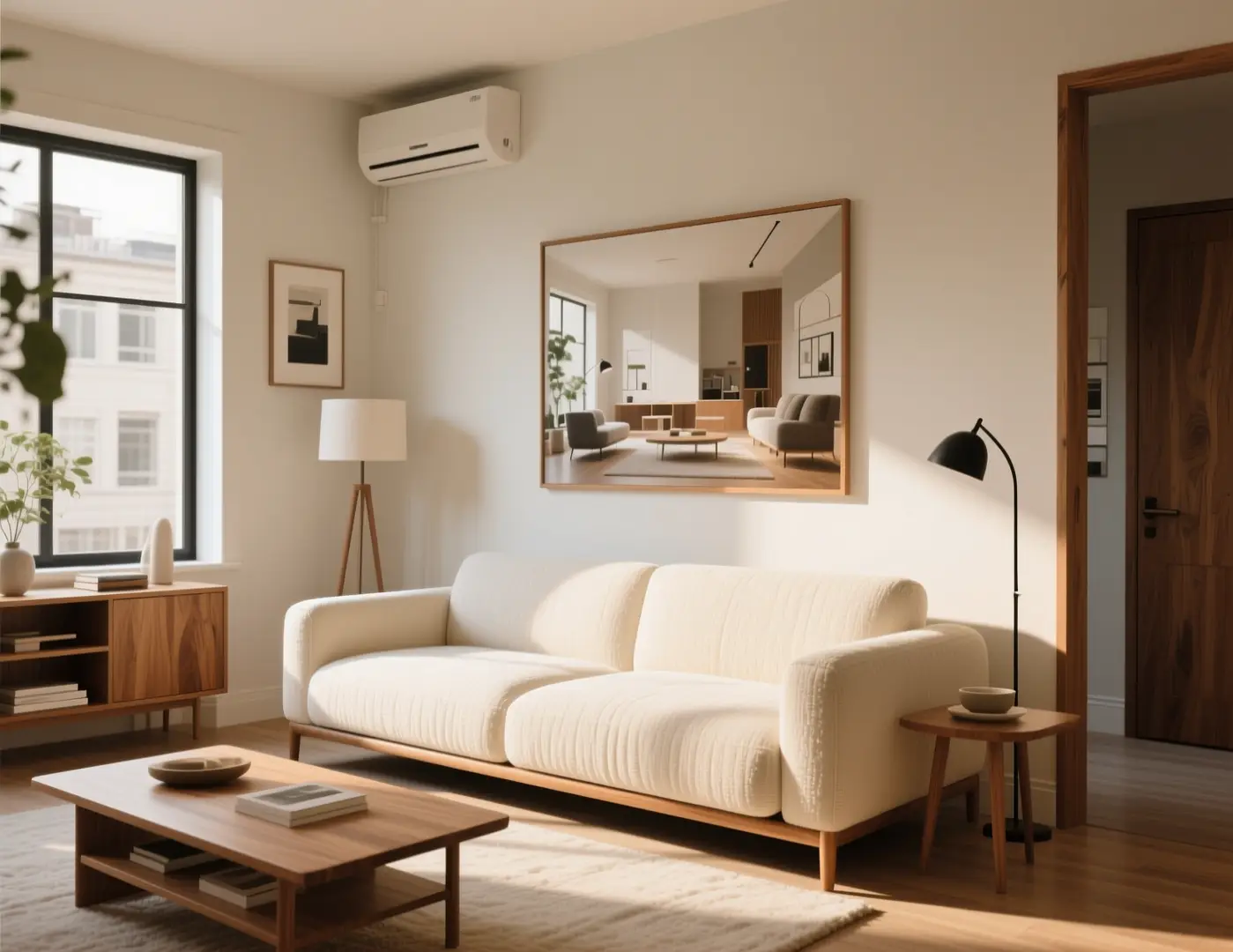
Pick a still where the subject, camera height, and main masses are already right. A sharp product pack, a room photo with a clear vanishing point, or a line drawing with readable shapes all work better than a busy collage. If the source pose is wrong, recrop or reshoot it first. Prompt notes cannot invent a stance the upload never held. The room still here is an illustrative image-to-image template frame for keep-and-change discipline, not a verified Flux 2 Pro pair.
Keep the living room layout, sofa, plants, and camera height from the uploaded photo. Change only the lighting: cooler overcast window light, slightly deeper shadows under the coffee table, same furniture, no extra windows or chairs.Run a Flux 2 Pro image generator pass
02
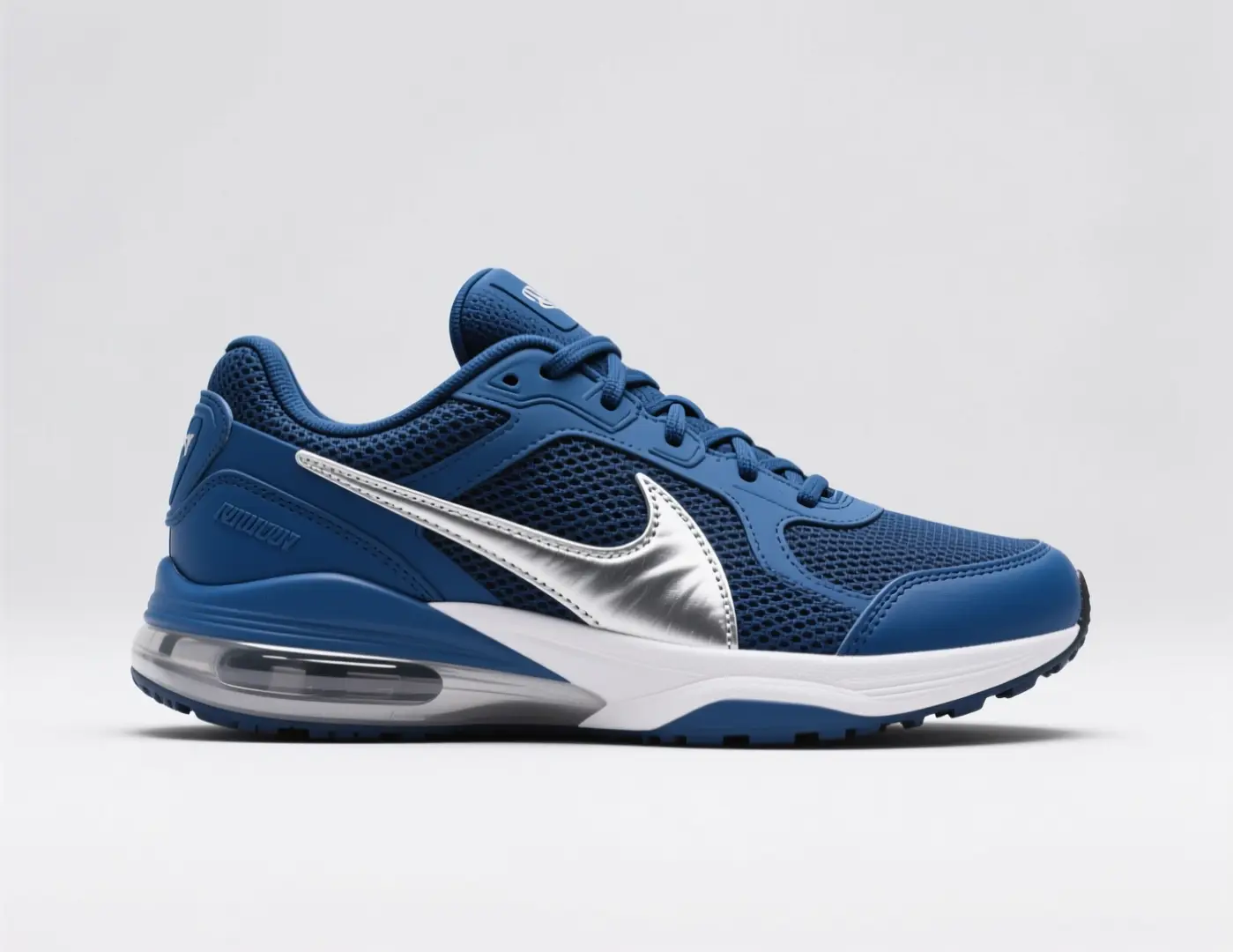
Write two short lists. Keep: silhouette, logo placement, furniture layout, or pose. Change: season, materials, colorway, or finish. Mixing those into one mood sentence hides why a result drifted. After each run, check the keep list first. If a keep item moved, try a simpler change list instead of adding more adjectives. The sneaker still is an illustrative image-to-image template source for a one-fact change list.
From the uploaded sneaker photo, retain the last, sole shape, stitching, and three-quarter angle. Request a colorway change only: deep burgundy upper, off-white midsole, no extra logos, same catalog crop.Run a Flux 2 Pro image generator pass

03
Use this Flux 2 Pro image generator when the object, room, or drawing already exists in the photo and you need a neighboring still: a quieter backdrop, a new colorway, or a different light. You are not inventing the subject from a paragraph. That blank-page job belongs on the text-to-image generator. Compare every output to the file you uploaded. The bottle still is an illustrative image-to-image template frame, not proof of a Flux 2 Pro rewrite.
Keep the dropper bottle, cap, scale, and front-facing crop from the upload. Do not invent extra label lettering. Move the set onto cool slate with a window wash from the left and a quieter floral accent.Run a Flux 2 Pro image generator pass
Use this Flux 2 Pro image generator when the object, space, or drawing already exists and you need a neighboring version. Select a scenario to see the kind of source this workbench is for. A text prompt alone will not open this image-to-image route. The stills are illustrative image-to-image template frames, not verified Flux 2 Pro pairs.
These frames come from VideoAny's model-page libraries and the shared image-to-image template. Treat them as sample sources you might study before you upload your own still to this Flux 2 Pro image generator, not as proven before-and-after case studies and not as verified Flux 2 Pro output.
Illustrative references. Not verified VideoAny input/output pairs.

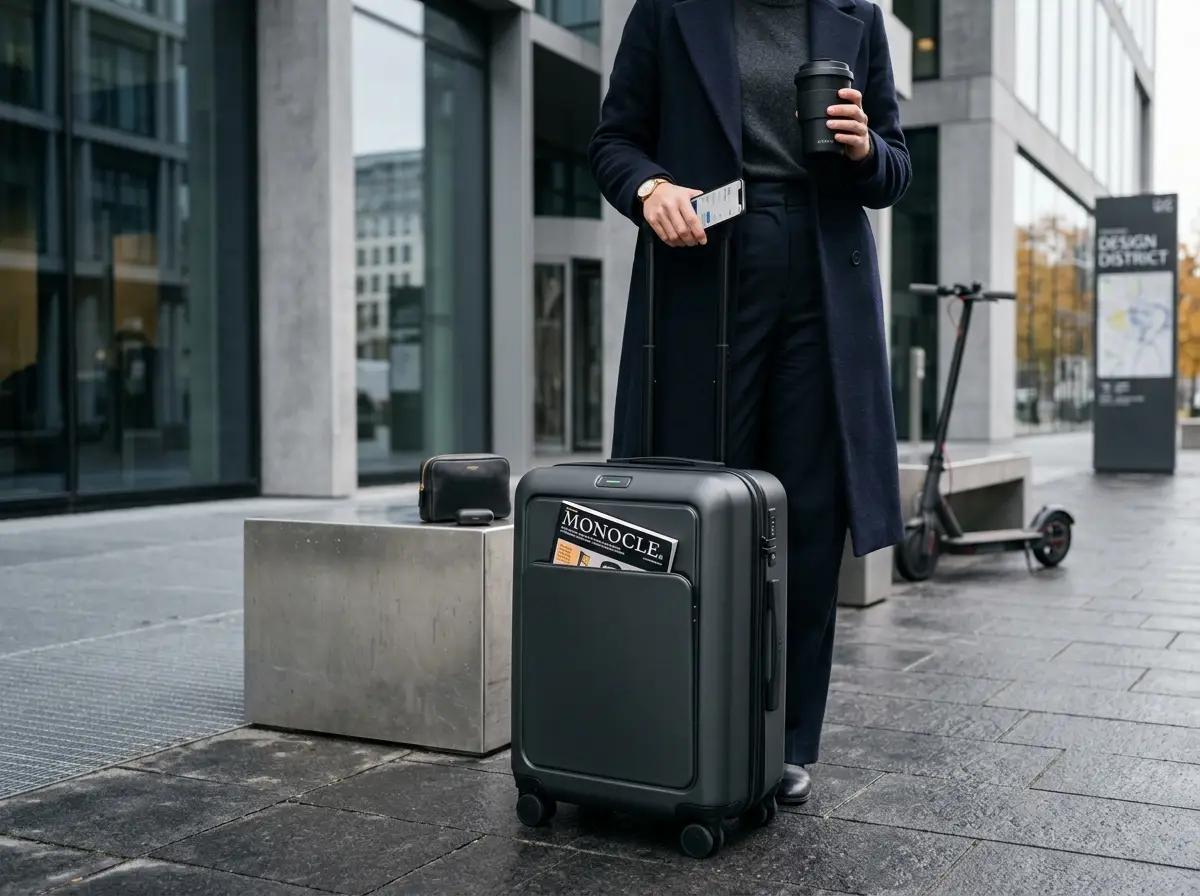
A pack that already shows label placement is a better source than a mood collage. Crop to the product before you ask for a new surface or season. Extra objects in the frame will be interpreted. This pack board is an illustrative image-to-image template still, not a Flux 2 Pro pair.
Illustrative source for a label-aware rewrite. Not a verified Flux 2 Pro image generator pair.
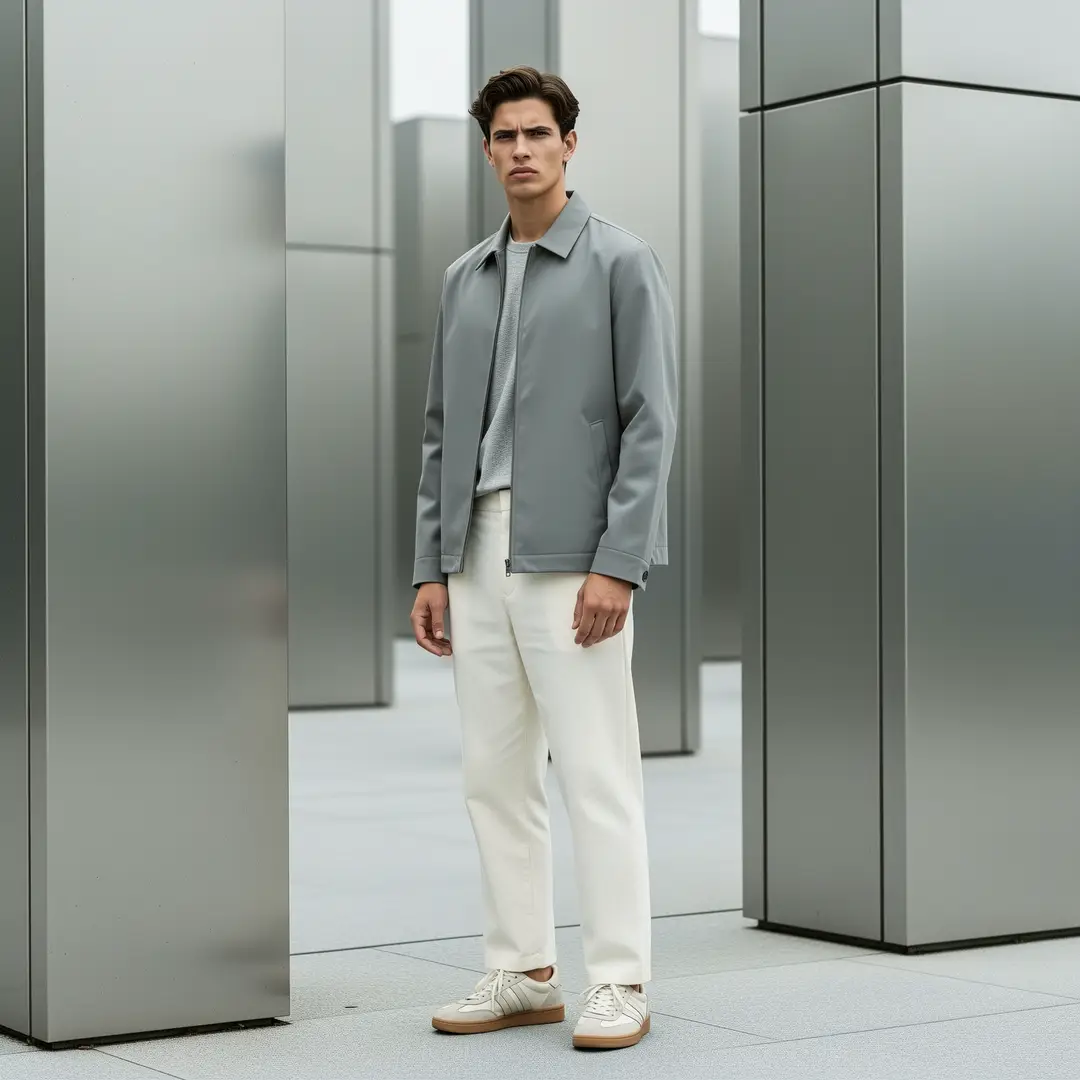
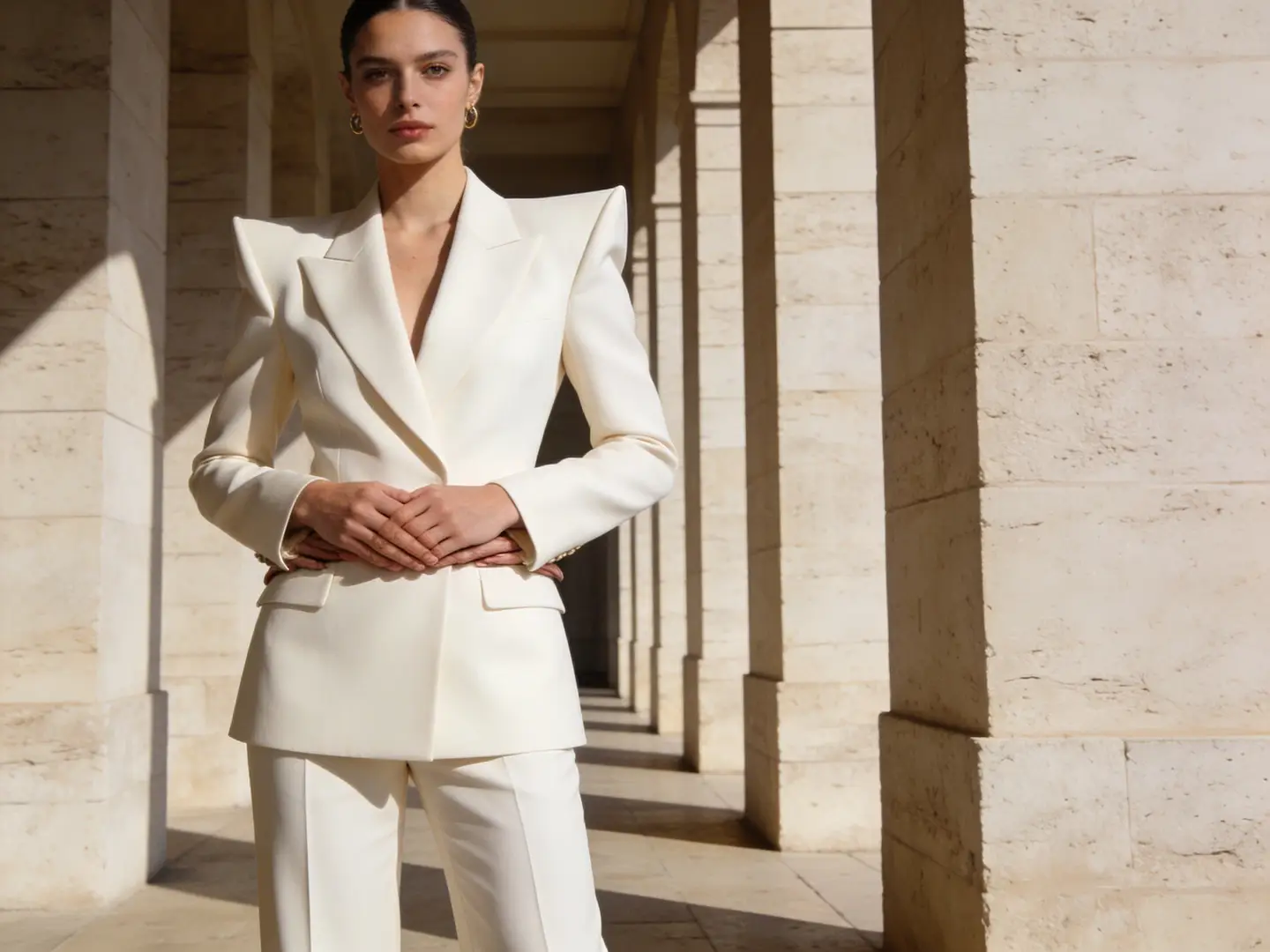
A full-length outfit still can take a new venue if you keep pose, garment, and crop in the keep list. Broad restyle language is how extra accessories appear. Name the load-bearing parts once, then list the one backdrop or lighting change you actually want.
Illustrative lookbook source for a venue or lighting change. Not verified Flux 2 Pro proof.
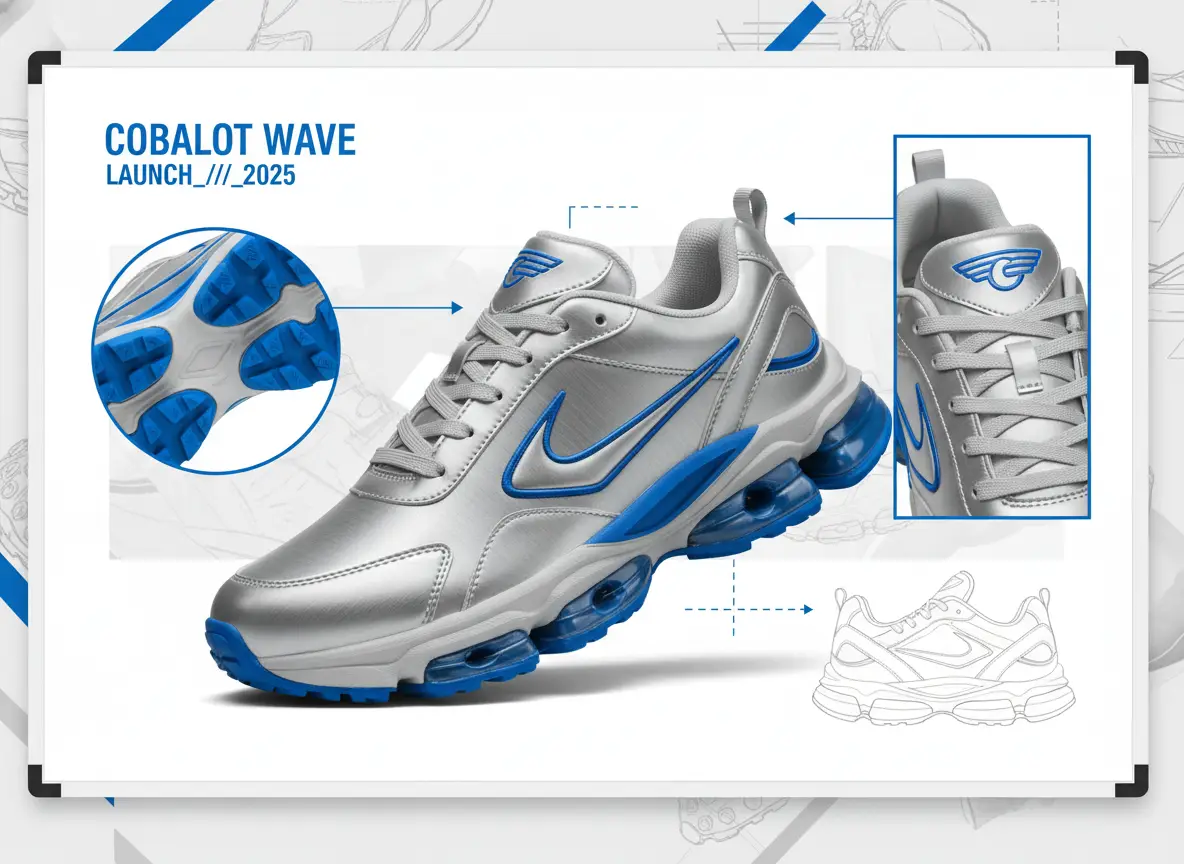
A clean product on a plain field is easier to recolor than a lifestyle crop with busy reflections. Hold shape and stitching; change only the palette. Inspect the sole and any label area against the upload after the run. The sneaker board is an illustrative image-to-image template for one-fact tests on this Flux 2 Pro image generator.
Illustrative board for colorway tests from one source. Not a verified Flux 2 Pro image generator set.
This Flux 2 Pro image generator is steered with notes, model, and crop. Name objects you can count. One environmental or finish change is enough for a retry. There is no mask, region brush, inpaint control, or strength slider here.
01
Desks, browsers, and extra products will be interpreted. A cleaner source is the cheapest control you have. Flux 2 Pro accepts up to eight reference images, so send the crops you actually want rewritten. If you are adapting a pack shot, keep the label readable in the frame you send.
02
A long change paragraph is how extra windows, bottles, and accessories appear. Write the keep list in objects. Write the change list as one fact. If the first result drifts, shorten the change list rather than narrating the entire scene on this Flux 2 Pro image generator.
03
Walk silhouette, object count, lettering, and camera height. A handsome restyle that invents a second bottle has failed the keep list. Decide in advance which errors you will accept before you spend another run. Prompt-led editing is iterative; it is not a local retouch desk.
Creator workflow notes
Working habits for a referenced rewrite, not user reviews
These notes describe common ways to run a keep-and-change pass on this Flux 2 Pro image generator. They are not user reviews, ratings, or promises about a specific result.
Lighting rewrite
Interior workflow
“Keep furniture count and camera height. Change only the window light. If a new chair appears, the change list was too broad.”
Colorway rewrite
Product workflow
“Keep last, stitching, and angle. Change only the upper color. Inspect the sole and any label area against the upload.”
Finish rewrite
Illustration workflow
“Keep pose and staging lines. Name the new medium in one clause. Check hands, eyes, and lettering before you accept the plate.”
A Flux 2 Pro image generator search should still expect a credit line. Each rewrite shows the cost for the selected model and options before you generate. Cover the still you upload, how far the frame may drift, and what this page will not do.
The input is one or more reference stills plus notes. A single clear photo beats a montage. Write keep-and-change in plain language. Do not expect a mask, a region brush, or a numeric strength control; those are not how this page is set up. Fix a blurry source before you generate.
Use a still where the subject is large and readable. Product photos, room photographs, and line drawings work better than collages or tiny thumbnails. Flux 2 Pro accepts up to eight reference images. This workbench will not start from an empty prompt, and it will not generate video.
No. Name what must remain and what should change. If the first result drifts, shorten the change list rather than narrating the entire scene.
Open the source and the new still side by side. Check silhouette, count of key objects, and any lettering. A handsome restyle that invents a second bottle or a new window has failed the keep list. Decide in advance which errors you will accept.
Broad change language or a ratio that does not match the source can invite extra objects. Narrow the change list, match the crop, and try again on this Flux 2 Pro image generator.
This workflow does not provide precise edit masks, inpaint brushes, or strength sliders. You steer with notes, ratio, and 1K or 2K on Flux 2 Pro. Use a dedicated local editor if you need a region retouch. This page does not invent a new subject from text.
This Flux 2 Pro image generator stays on Flux 2 Pro. You can choose 1K or 2K. Review the displayed credit cost every time you change ratio or resolution. After a still that holds the source, you can move it into motion on a video route. This page does not waive those limits or invent an open-ended run budget.
Not necessarily. The workbench shows the cost for the model and options selected on this path. Read that value rather than reusing a number from another tool. When references are present, Flux 2 Pro runs as image-to-image; this locked route still expects an upload.
Write a text-to-image brief instead. A source file will keep pulling the still toward the upload. For motion from the rewrite, continue in image-to-video. This Flux 2 Pro image generator stays on stills.
Work in this order: file, notes, selections, then inspection. These steps match the upload area, prompt field, and toolbar on this Flux 2 Pro image generator. The picture is an illustrative board, not a screenshot of the live form.
Open the workbench and add a still. Crop out desks, browsers, and extra products that you do not want interpreted. Confirm the subject fills the frame. Flux 2 Pro accepts up to eight reference images. If you are adapting a pack shot, keep the label readable. A cleaner source is the cheapest control you have. This generator will not start from an empty prompt.
Type the keep list first and the change list second. This route keeps Flux 2 Pro selected. Match aspect ratio to the upload unless the destination truly differs; auto is available when you want the model to follow the source frame. Choose 1K or 2K. Read the displayed credit cost and any limit for that combination, then generate.
Place the result next to the upload. Walk silhouette, object count, lettering, and camera height. If the finish is wrong but the structure held, change only the medium clause. If structure broke, simplify the change list or recrop the source.
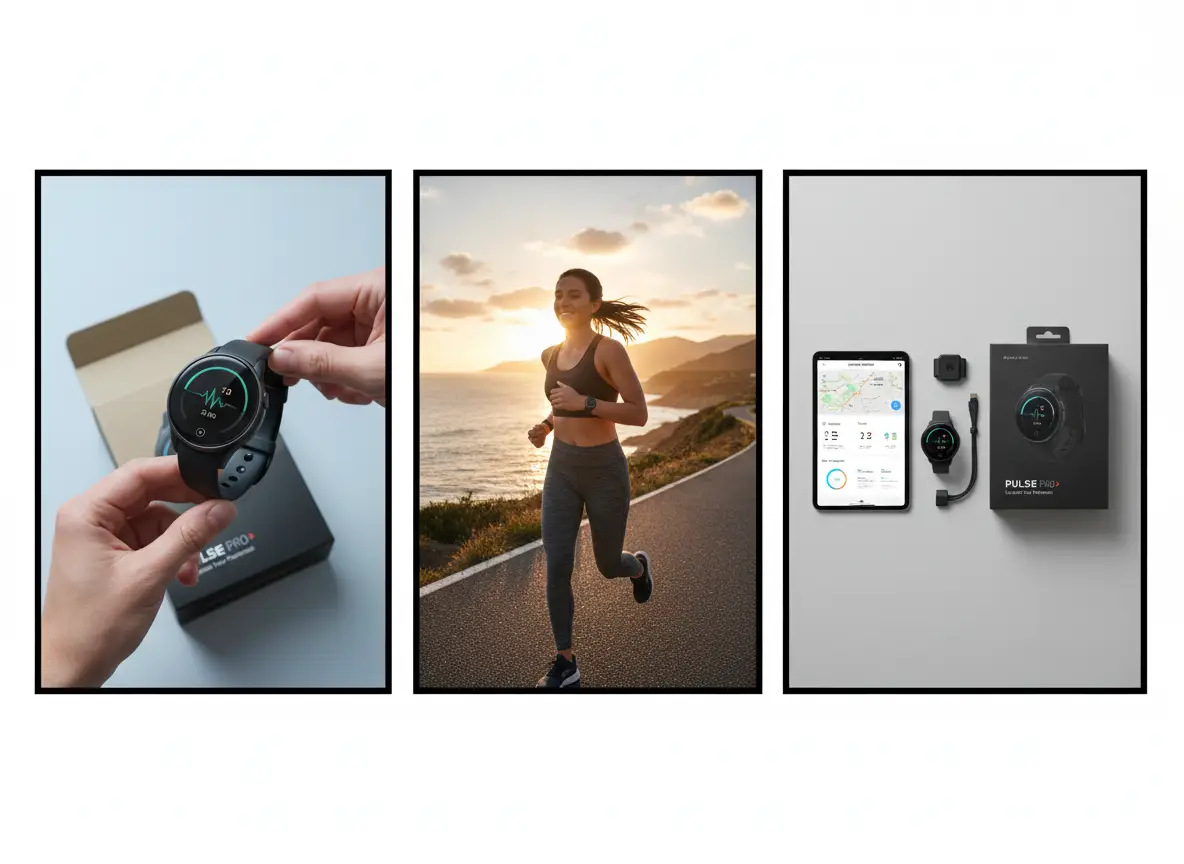
Write the keep list, cap the retries, and define how close is close enough. Then load the still into this Flux 2 Pro image generator and generate with those constraints in view.
Write the keep list in objects you can count. Write the change list in one environmental or finish fact. If either list is a pile of adjectives, edit it before you upload. Put both lists next to the source file. Every later note should still point at those lines.
Decide how many attempts this still is worth before you recrop or reshoot. Read the displayed credit cost for Flux 2 Pro and the ratio and resolution you selected. When the retry budget is gone, accept the closest keep-list match or fix the source. Starter credits are a finite retry budget, not an open-ended edit desk.
State whether a mood match is enough, whether labels must stay readable, or whether object count must match the source. That bar tells you when to stop and when to leave for a retoucher. Open the workbench after those three decisions are written.
VideoAny AI
Run a Flux 2 Pro image generator pass
Write the keep list, cap the retries, and define how close is close enough. Then load the still into this Flux 2 Pro image generator and generate with those constraints in view.
This website is an independent third-party platform. We are not affiliated with, endorsed by, or officially representing any AI model providers referenced on this site. All trademarks and brand names belong to their respective owners.
© 2026 EditorAny. All rights reserved. EditorAny