EditorAny
  • Home
  • AI Video Tools
    • AI Workflows
      • Text to Video
      • Image to Video
      • Video Editor
      • Video Extend
    • Creative Tools

      • Seedance 2.0
      • Seedance 2.5
      • TikTok Video from Photo
      • Instagram Reel from Photo
      • Wan 3.0
      • YouTube Shorts from Image
      • Product Video from Photo
      • AI Product Spin Video
      • Turn an Image into a Video
      • Extend an AI Video
      • First and Last Video Frames
      • Image-to-Video Prompt Guide
      • Wan 2.7 vs Seedance
      • Wan 2.7 First and Last Frames
      • Seedance 2.0 API
      • Save and Reuse Video Settings
      • Wan vs Seedance Product Video
      • Make a TikTok Video from a Photo
      • Vertical 9:16 Video from Photo
      • Anime Image to Video
      • Template-Based AI Video
      • Lindyson AI AI Video
      • Beef TV Alternative
      • OmniAILab AI Director
      • Free Claude AI Video Generator
      • NIXM AI Video With Sound
      • Reusable Video Templates
      • Social Video from Photo
      • Ecommerce Video from Still
      • OpenFilm AI Video
      • Cinematic Video Prompts
      • AI POV Video Generator
      • ReelMimic AI Video
      • FrameFields AI Video
      • PrintFilm AI Video
      • Anything2Explainer AI Video
      • Huashu Motion AI Video
      • StoryShort AI AI Video
      • Keyframes to Video
      • WeftCanvas AI Video
      • ComfyUI AICG3D Short Drama
      • Seedance 2.5 API
      • Wan 3.0 Video API
      • Multi-Model AI Video Studio
      • Motion Control
      • AI Hug Generator
      • AI Kiss Generator
      • AI Dance Generator
    • Templates / Resources

      • Action & Motion
    • View all
  • AI Image Tools
    • AI Workflows
      • Text to Image
      • Image to Image
    • Creative Tools

      • AI Outfit Generator
      • Background Replacer
      • AI Body Editor
      • Photo to 4K
    • View all
  • AI Models
    • AI Models
      • GPT Image 2
      • Flux 2 Pro
      • Hailuo 02
  • Blog & Guides
  • Rewards
  • Pricing
Settings
Language
English
  • English
  • 日本語
  • 한국어
  • Español
  • العربية
  • Français
  • Deutsch
  • Русский
  • Nederlands
  • Italiano
ThemeAtelier
Privacy policyTerms of serviceRefund policy
Premium-50%50% off
Lite

Premium membership from $19 per month

Premium benefitsMore benefits
Fast generationHD outputAll image toolsAll video tools
EditorAny
  • Home
  • For You
  • Create
  • Pricing
  • More
  • Home
  • For You
  • AI Video
  • AI Image
  • Anime / Manga
  • Video Edit
  • Video Extend
  • AI Tools
  • Generate
  • Agent
  • Explore
  • Home
  • For You

Create & chat

  • AI Video
  • AI Image
  • Anime / Manga
  • Video Edit
  • Video Extend+5s
  • Generate
  • AgentBeta
  • Explore

Public discovery

  • AI Tools
Upgrade for more

Model & settings

Aspect Ratio

Duration

5s

Resolution

Repeat

1
2Current5810MAX
Advanced settings

Public HTTPS URL · WAV/MP3 · 3–30 sec · up to 15 MB. Custom audio overrides generated audio.

Upload reference

0/1

Prompt

Prompt
0/2000
Credit cost

Generate 1 videos · 35 credits total

This run is 5s and billed for 5s. This model max is 15s. Duration written in the prompt does not change the length.

  1. Home
  2. ›AI Tools
  3. ›AI Image Tools
  4. ›Photo to Video

VideoAny AI

Photo to Video from a Photo You Already Have

What is this photo to video workbench? Upload a photo you are authorized to use as the first frame or reference image, write a motion prompt, then generate. It is the same locked i2v path as image-to-video, not a text-to-video box. The credit cost appears before you submit.
VideoAny
Veo 3
Kling AI
PixVerse
Vidu AI
Illustrative city motion

Illustrative city motion

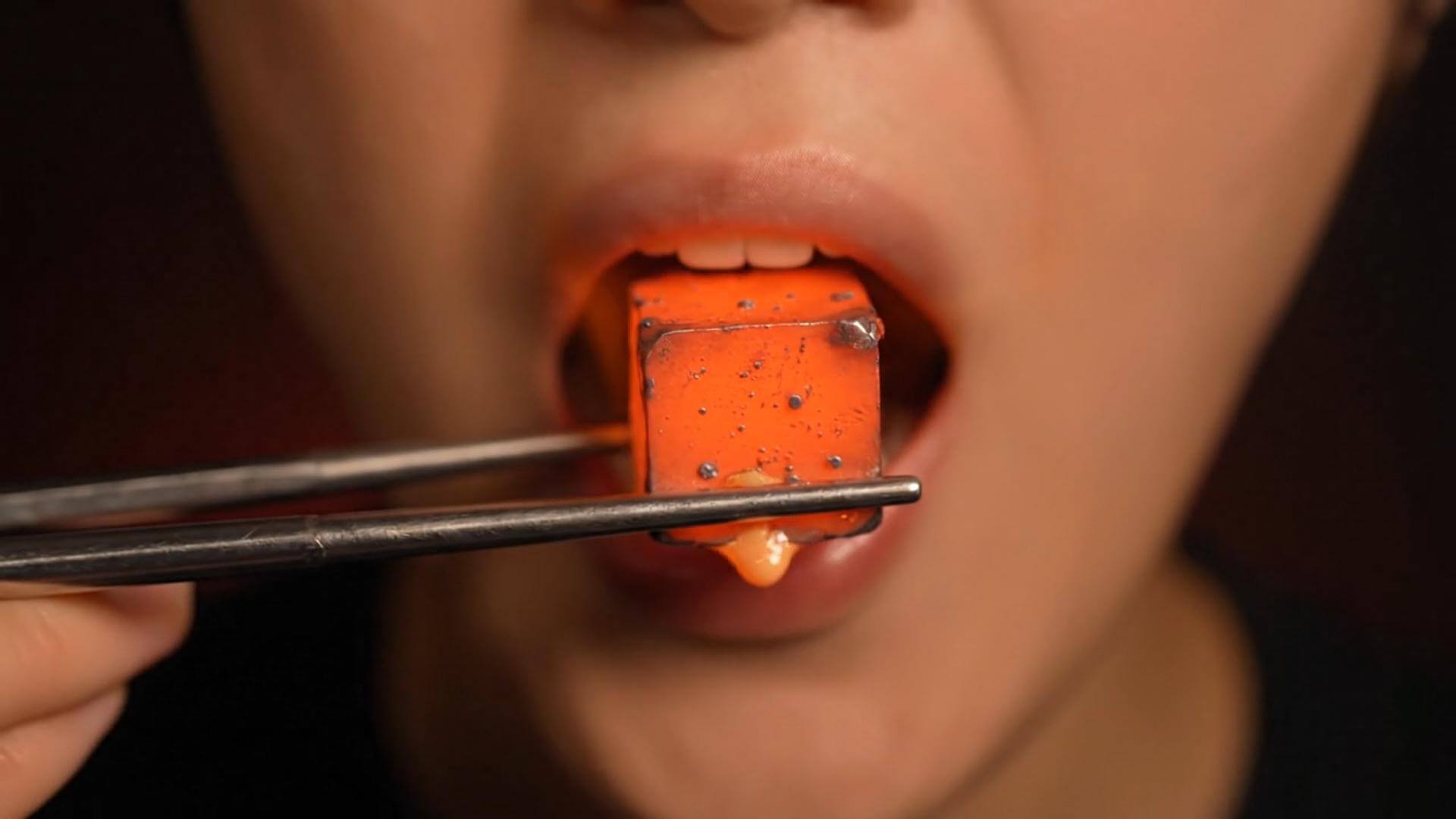
Illustrative close-up texture

Illustrative close-up texture

Illustrative character moment

Illustrative character moment

From a photo you already have to a motion draft

A paragraph alone will not open this photo to video path. Start with a photo that already holds the subject you want to keep, then generate. The clips below reuse the text-to-video template media; they are illustrative, not verified photo to video outputs.
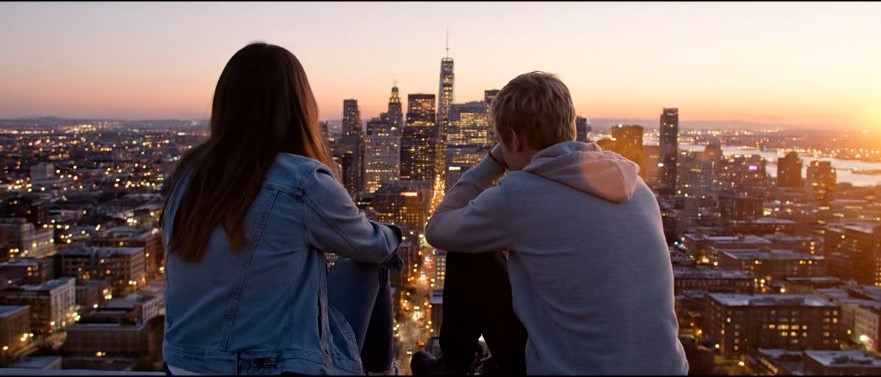
Illustrative motion clip, not a verified photo to video output
Template example clip
✦A cinematic city scene unfolds as the camera follows two friends at sunset...Warm evening light moves across the skyline in a gentle cinematic shot...↗

Start from the uploaded photo

Generate a draft, then tighten the motion prompt

You do not need a finished storyboard. Keep the subject from the photo, describe one camera or motion change, generate a short draft, then change one instruction at a time. Recheck the displayed credit cost after duration or resolution changes.

What you can actually change on this photo to video path

Keep the uploaded photo, the motion prompt, and the duration or resolution choice in one loop. Do not treat this as a blank-page text-to-video generator.

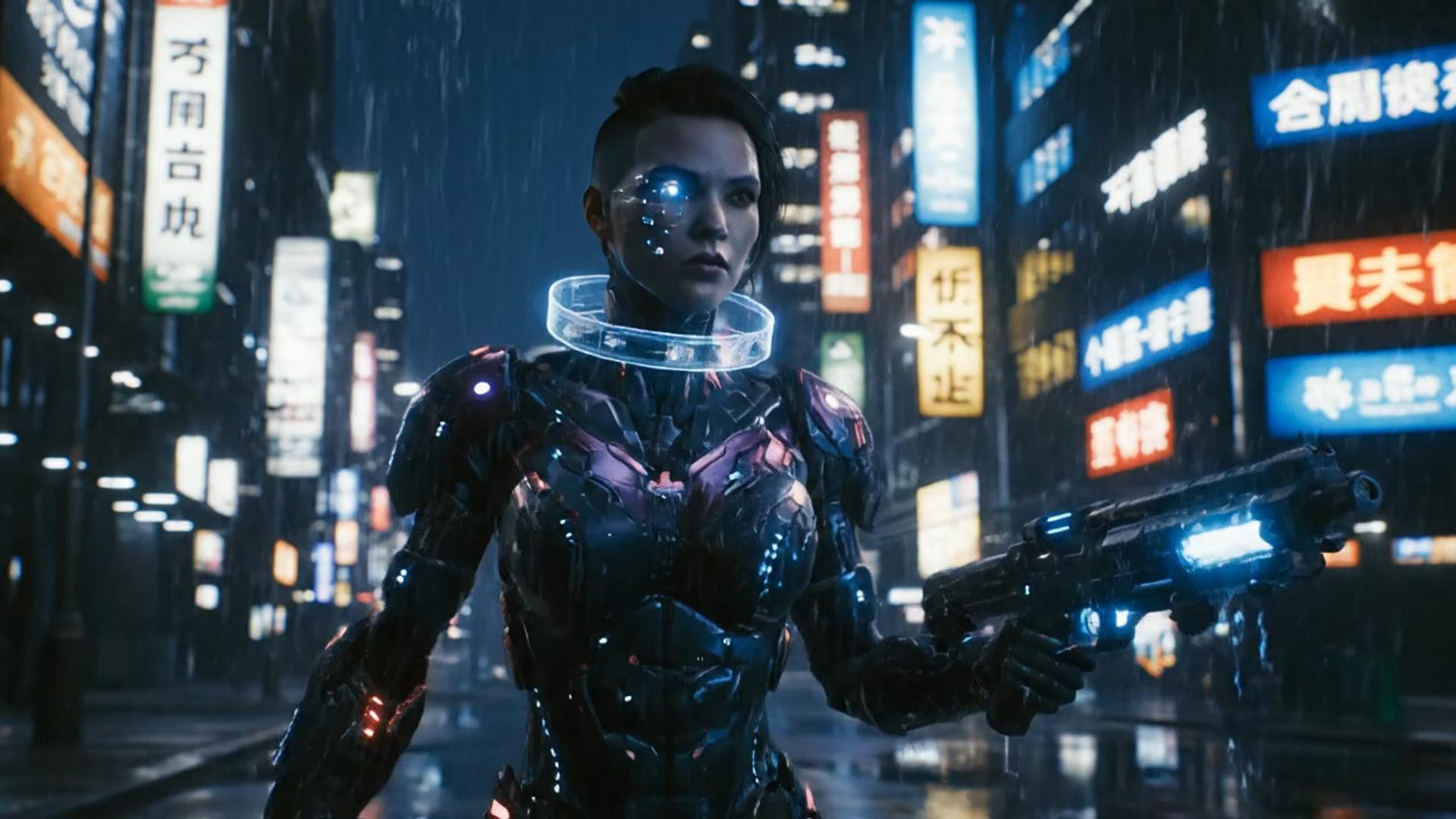
✦A cinematic character walks through a neon city in the rain...The camera follows the character as the lights begin to glow...↗
01

Keep the subject from the photo, then ask for motion

This is not a story typed into an empty box. The photo has to already hold the crop, lighting, and subject you want to keep. Prompt the motion, then judge the draft against that upload.

✦A baby bird hides under its mother’s wing as rain falls softly...Warm light moves across the feathers in a gentle close-up shot...↗
02

Iterate duration and resolution with the credit cost in view

Stay in this photo to video workbench from upload to History. Changing length or resolution can change the displayed credit cost. Read that number before you generate again.

✦The viewer looks up, the character turns toward the camera...A hand-held camera gently pushes in as the scene changes...↗
03

Describe the motion without leaving the i2v tab

Name the camera, the motion, and what must not change. This page does not open a generic text-to-video catalog. Availability follows the workbench selector.

✦Create a polished video from your idea, right in the browser...Review the result, refine the prompt, and generate another version...↗
04

Stay in the browser workbench

No extra editor install is required. Open this page, upload a photo, write a motion prompt, and manage finished clips in History.

Who this photo to video path is for

Use this path when a photo already holds the subject you want to animate. It is not a substitute for a generic text-to-video page, and it does not promise every request will run.
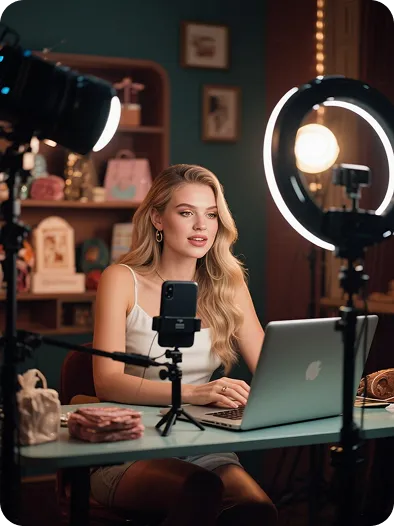
Creators who already have a photo

Creators who already have a photo

When the subject already exists in a photo, a short motion prompt is enough to test a social take. A script without a photo belongs on another workflow.

Brands starting from a pack shot

Brands starting from a pack shot

A catalog photo can take a small camera move. Compare the silhouette to the upload after every run.
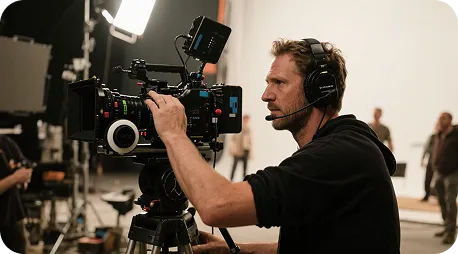
Directors checking a neighboring take

Directors checking a neighboring take

Use a locked photo to preview a camera idea before you commit to a longer shoot. The template clips are not dailies from this workbench.
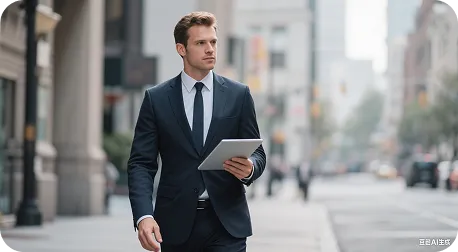
Marketers comparing photo-to-clip versions

Marketers comparing photo-to-clip versions

Generate a few photo to video versions from the same photo, then pick a rhythm. Extra takes still spend the credits shown for that run.
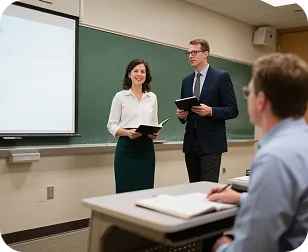
Instructors animating a photo

Instructors animating a photo

A clear photo can take a simple pan or zoom. Keep labels readable, and do not ask the page to invent a lecture from text alone.

Workbench notes

A real iteration loop, from an uploaded photo to a first take

Write the keep-and-move notes first, generate, then use the draft to correct the next motion prompt. The cards below show common work habits. They are not reviews of named users, and they are not proof of a specific clip.

He Yuxuan

E-commerce advertising operator

“I keep one product photo, write a short motion prompt, generate a few takes, and pick the one whose rhythm fits the listing.”

Gu Zhiyuan

Short-form video creator

“One photo gets me to a motion draft faster than starting from a blank timeline, as long as I keep the subject honest.”

Li Peishan

YouTube creator

“I reuse the same photo and only change camera language, which makes the next photo to video take easier to compare.”

Xu Ruizhe

Student creator

“I test one motion direction at a time from the same photo instead of rewriting the whole scene.”

He Zhiyu

Founder

“One photo plus a motion prompt is a faster promo draft than building keyframes by hand.”

Wu Zhiqing

Instructor

“A diagram photo can take a simple camera move so a process is easier to show. That is a workflow note, not a classroom result claim.”

Frequently asked questions

Common questions about this photo to video workbench path.

What is photo to video on this workbench?+−

On VideoAny it is a photo-to-clip path, not a text-to-video engine. You upload a photo, treat it as the first frame or reference image, write a motion prompt, and generate on the locked i2v workbench. Current model and service rules still apply.

How long does a photo to video clip take to generate?+−

Wait time follows duration, resolution, and the current queue. After you submit, watch History for status, then preview or download when the task finishes.

Why does the clip differ from the motion prompt?+−

The photo already holds the subject. Keep that identity, name a camera move if you need one, and avoid asking for a pose the upload never held. If the keep list drifted, simplify the next run instead of stacking adjectives.

Can I revise a clip I do not like?+−

Yes. Keep the same photo, change one camera or motion note, and generate again. Compare versions in History. A new photo is only needed when the source subject is wrong.

Is photo to video a free run with no credit cost?+−

You can open the workbench and inspect the locked i2v tab. Available output follows your account, and the credit cost for this run is shown before you submit.

Can I use a generated photo to video clip commercially?+−

Check rights to the uploaded photo, the selected model terms, and your VideoAny plan before any commercial use. This page does not grant a commercial license.

Photo-to-clip walkthrough

Three steps from an uploaded photo to a clip

How to run this photo to video path

Photo to video from a photo vs. a generic editor

Keep the uploaded photo, the motion prompt, and the credit preview in one workbench instead of bouncing between an editor timeline and a separate generator.

Photo to video from a photo vs. a generic editor
Feature comparisonThis photo to video workbenchA generic editor
Ease of useUpload a photo and a motion prompt in one workbenchScenes and editing must be built on a timeline
Visual varietyMotion from the subject already in the photo, on this photo to video workbenchFewer looks unless you change the source photo
Prompt readingReads keep / motion / camera notes against the uploaded photoKeyword matching with little use of the photo
Templates and effectsPrompt-led motion from the upload; no extra template pack is promisedFewer reusable looks after a first export
What this page coversPhoto to video from a photo on the locked i2v workbenchA generic editor that is not built for this path
CustomizationChange the motion prompt, duration, or resolution, then generate againLittle room to iterate after the first export
Generation timeCloud generation; wait time follows clip length and queueSlower and dependent on local hardware
OutputOutput follows the selected duration and resolution on this photo to video workbenchQuality and watermarks depend on the other tool’s plan
Use casesPhoto-to-clip takes you are authorized to animateUsually limited to one editor job
ReviewFinished clips land in History on this accountNo shared History on this page
PricingCredit cost shown before each run; upgrade only if you need moreHigher subscription cost with less flexibility

More VideoAny video workflows

If you need a different source type, open the matching VideoAny workflow. Authorized adult stills can become an adult companion video or a cowgirl clip from a photo. This page stays on photo to video from an uploaded photo.
Photo to video
Photo to video→
VideoAny photo to video from a photo
VideoAny AI

Start from a photo you are authorized to use

Upload an authorized photo as the first frame or reference image, then review the clip in History. Each run spends the credits shown before you submit.

View pricing

Explore More AI Image Tools

  • Dots video effects
  • GPT Image 2 Generator
  • GPT Image 2.5 Version Guide
  • Image 2.5 Generator
  • image2.5 Name Guide
  • Seedance 3.0 status tracker
    EditorAny

    EditorAny | AI Video & Image Generator

    [email protected]
    AI Video Tools
    • View all
    • Text to Video
    • Image to Video
    • Video Editor
    • Video Extend
    • Seedance 2.0
    • Seedance 2.5
    • TikTok Video from Photo
    • Instagram Reel from Photo
    • Wan 3.0
    • YouTube Shorts from Image
    • Product Video from Photo
    • AI Product Spin Video
    • Turn an Image into a Video
    • Extend an AI Video
    • First and Last Video Frames
    • Image-to-Video Prompt Guide
    • Wan 2.7 vs Seedance
    • Wan 2.7 First and Last Frames
    • Seedance 2.0 API
    • Save and Reuse Video Settings
    • Wan vs Seedance Product Video
    • Make a TikTok Video from a Photo
    • Vertical 9:16 Video from Photo
    • Anime Image to Video
    • Template-Based AI Video
    • Lindyson AI AI Video
    • Beef TV Alternative
    • OmniAILab AI Director
    • Free Claude AI Video Generator
    • NIXM AI Video With Sound
    • Reusable Video Templates
    • Social Video from Photo
    • Ecommerce Video from Still
    • OpenFilm AI Video
    • Cinematic Video Prompts
    • AI POV Video Generator
    • ReelMimic AI Video
    • FrameFields AI Video
    • PrintFilm AI Video
    • Anything2Explainer AI Video
    • Huashu Motion AI Video
    • StoryShort AI AI Video
    • Keyframes to Video
    • WeftCanvas AI Video
    • ComfyUI AICG3D Short Drama
    • Seedance 2.5 API
    • Wan 3.0 Video API
    • Multi-Model AI Video Studio
    • Motion Control
    • AI Hug Generator
    • AI Kiss Generator
    • AI Dance Generator
    • Action & Motion
    AI Image Tools
    • View all
    • Text to Image
    • Image to Image
    • AI Outfit Generator
    • Background Replacer
    • AI Body Editor
    • Photo to 4K
    AI Models
    • View all
    • GPT Image 2
    • Flux 2 Pro
    • Hailuo 02
    Company & Legal
    • View all
    • Blog & Guides
    • Rewards
    • Pricing
    • About
    • Contact
    • Privacy
    • Terms
    • Refund
    Public discovery

    Explore AI tools by task

    All AI tools

    AI image generators

      AI anime generators

        AI video generators

          AI models

          • Nano Banana 2.1
          Browse AI models

          This website is an independent third-party platform. We are not affiliated with, endorsed by, or officially representing any AI model providers referenced on this site. All trademarks and brand names belong to their respective owners.

          © 2026 EditorAny. All rights reserved. EditorAny